Manage generated dataset
In this section, you will learn how to manage and explore your generated datasets. Once your generated dataset is ready, you can either share or delete it. You can also choose to download the whole generated dataset or just a single table, or download a report comparing the statistical properties of the synthetic and original data.
Rename a generated dataset
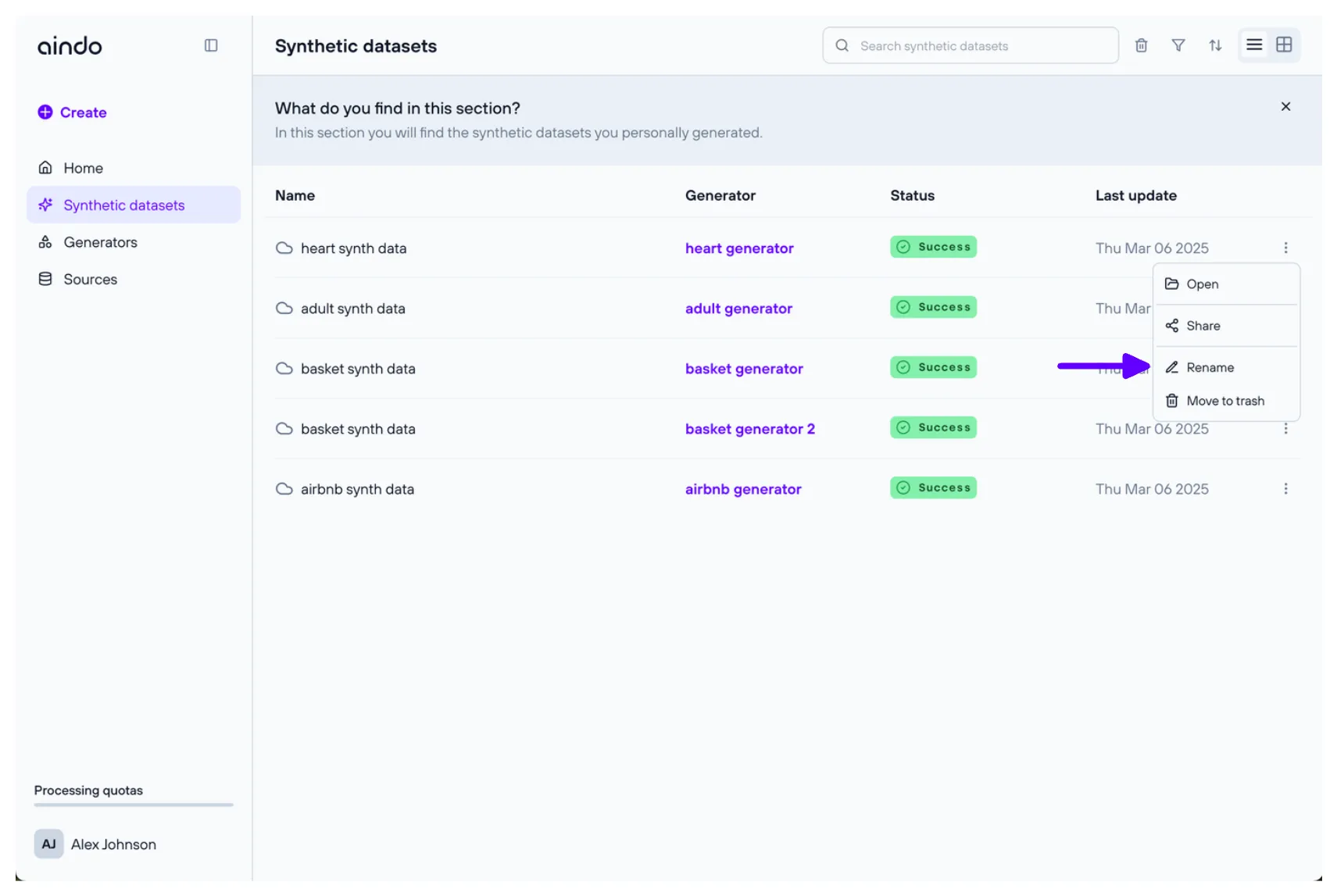
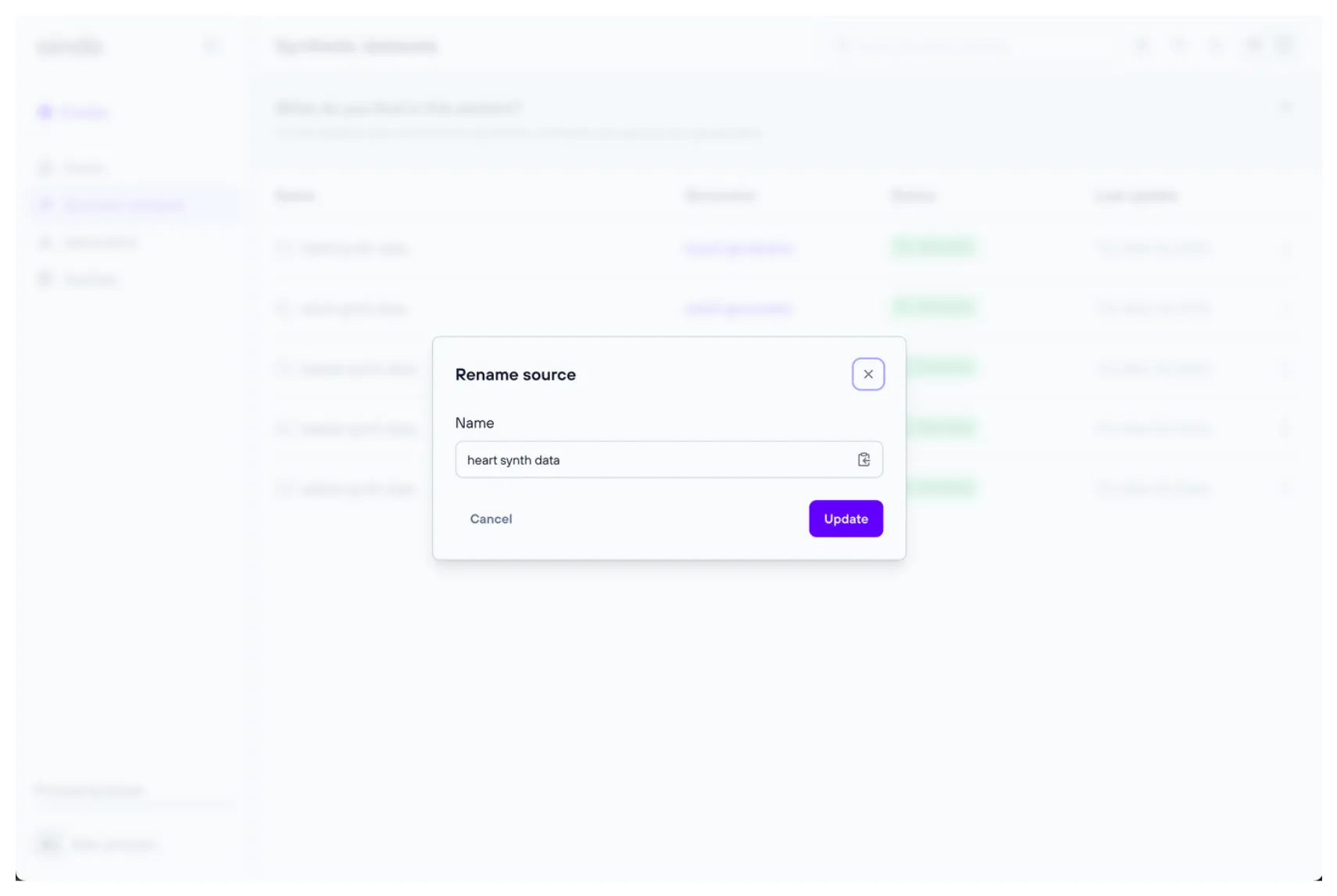
To rename a generated dataset, navigate to the list of generated datasets, click the three dots on the right of the generated dataset you want to rename and select ‘Edit name’.
Download a generated dataset
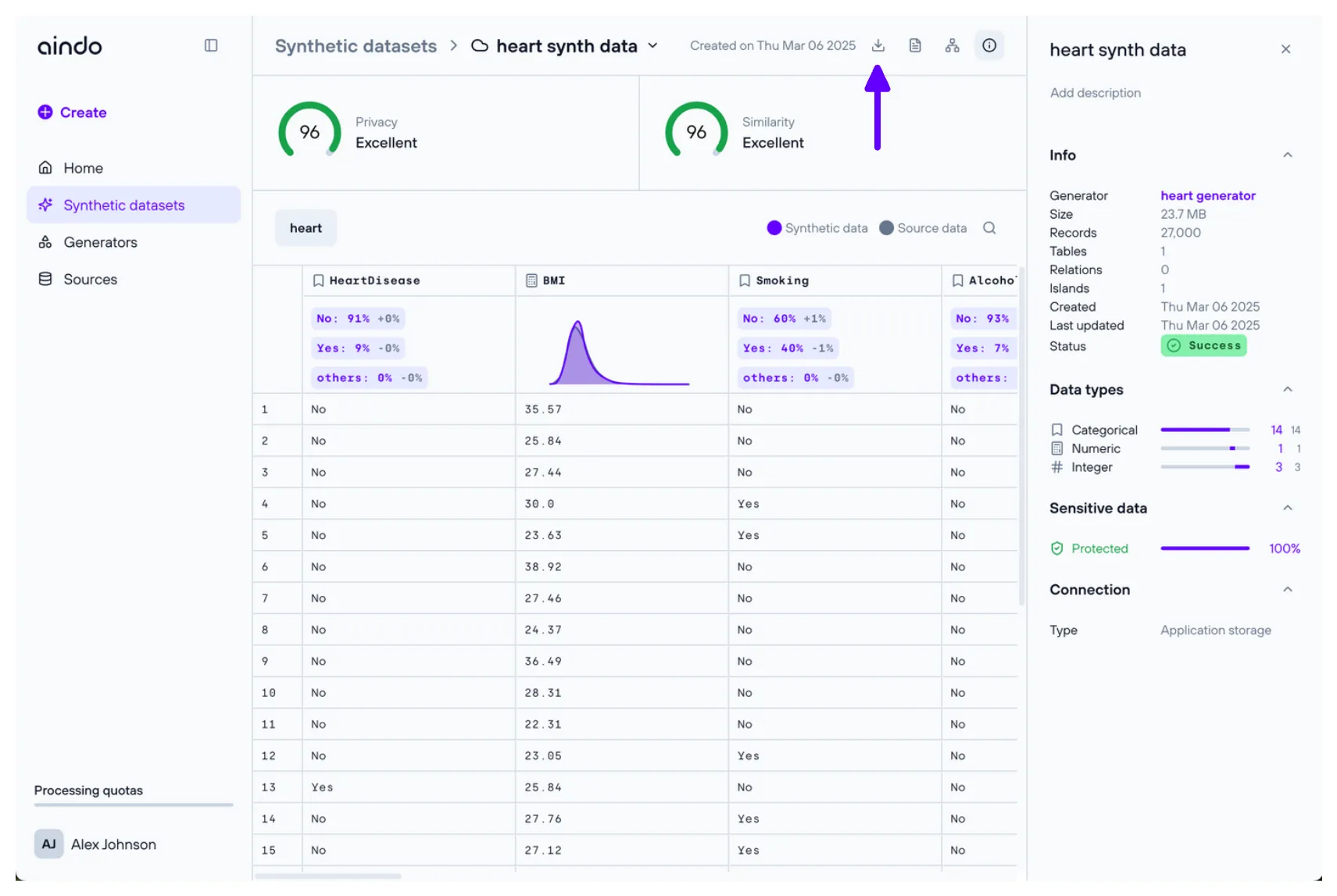
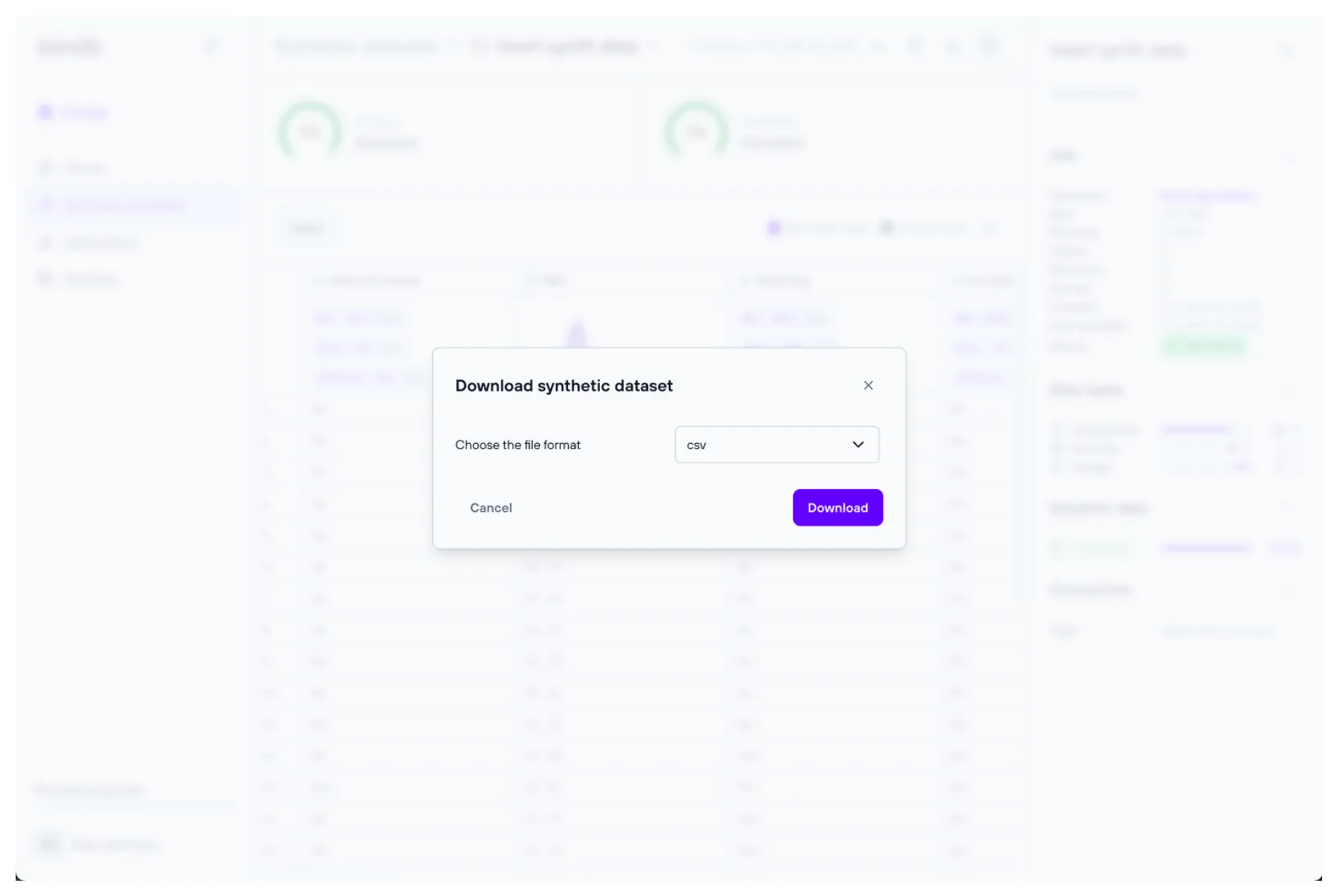
To download a generated dataset, open it from the generated dataset list page. Select the ‘Download’ icon in the top right corner of the page.
You can download the dataset in the following formats: csv, tsv, xlsx, ods, and parquet.
Download a single table from a generated dataset
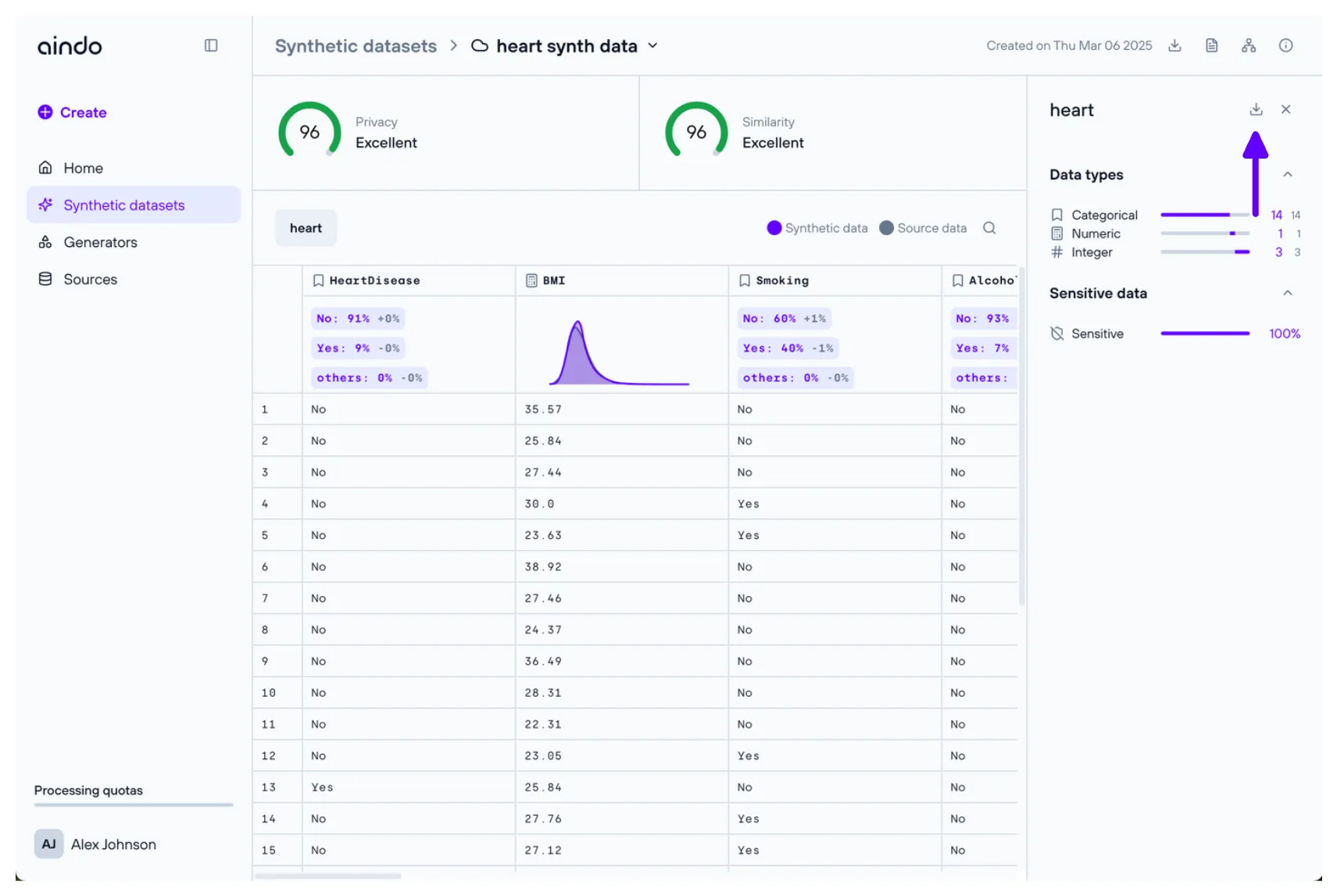
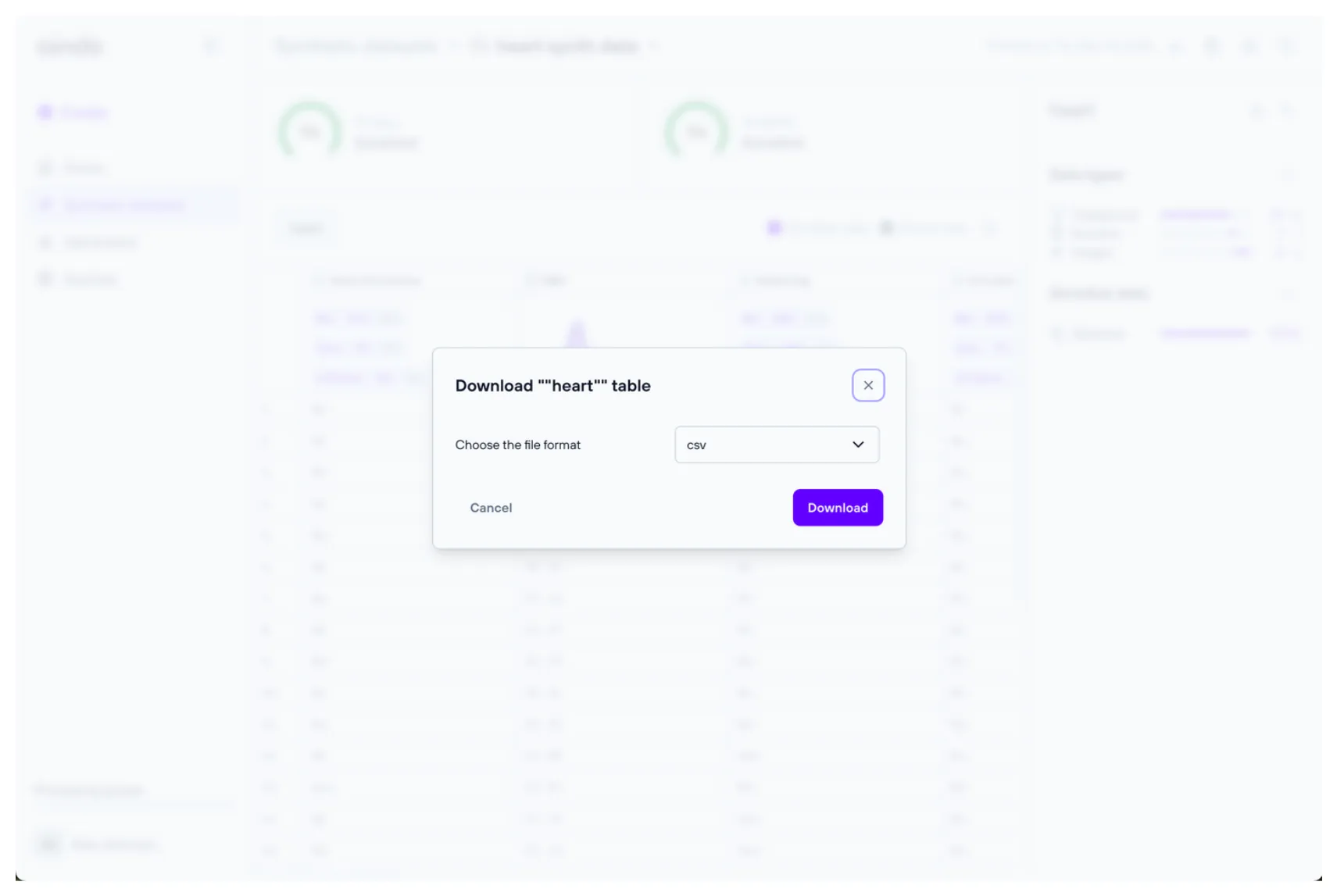
To download a single table from a generated dataset, open the generated dataset from the generated dataset list page. Select the desired table, then click the ‘Download’ icon in the side panel that shows details about the table.
You can download the table in the following formats: csv, tsv, xlsx, ods, and parquet.
Share a generated dataset
You can share a generated dataset in two ways: with specific registered users on the platform by assigning them roles, or by generating a public link accessible to anyone.
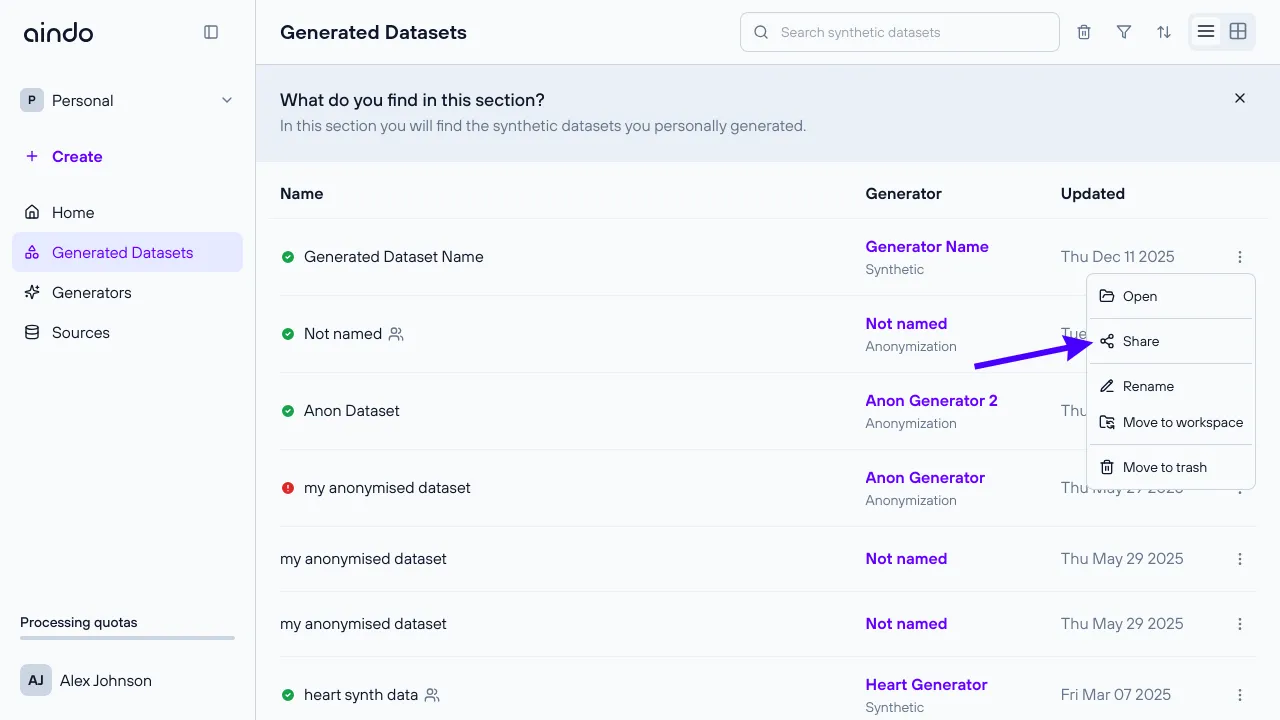
To access the sharing options, you can either:
- From the generated dataset list page, click the three dots in the row of the generated dataset you want to share, then select Share.
- Open the generated dataset and click the dropdown menu on the dataset name at the top, then select Share.

Share with users
In the sharing modal, you can share the generated dataset with registered users:
- Search for users using the search field.
- Add users and assign them a role.
- View and manage existing sharing permissions.

When you share a generated dataset with a user, it will appear in their Personal workspace. Sharing a generated dataset does not automatically share the generator that created it.
Roles and permissions
Viewer
- Can view the generated dataset.
- Can download the dataset and report.
Editor
- Has all Viewer permissions.
- Can rename the generated dataset and change description.
Owner
- Has all Editor permissions.
- Can change sharing settings.
- Can move the generated dataset to a workspace.
- Can delete the generated dataset.
Public link sharing
You can also generate a public link to share the generated dataset with users who are not registered on the platform.
To enable public sharing:
- In the sharing modal, enable the public link option.
- Copy the generated link to share with external users.
Users with the public link will be able to preview the data, download the generated dataset, and download the report.

Delete a generated dataset
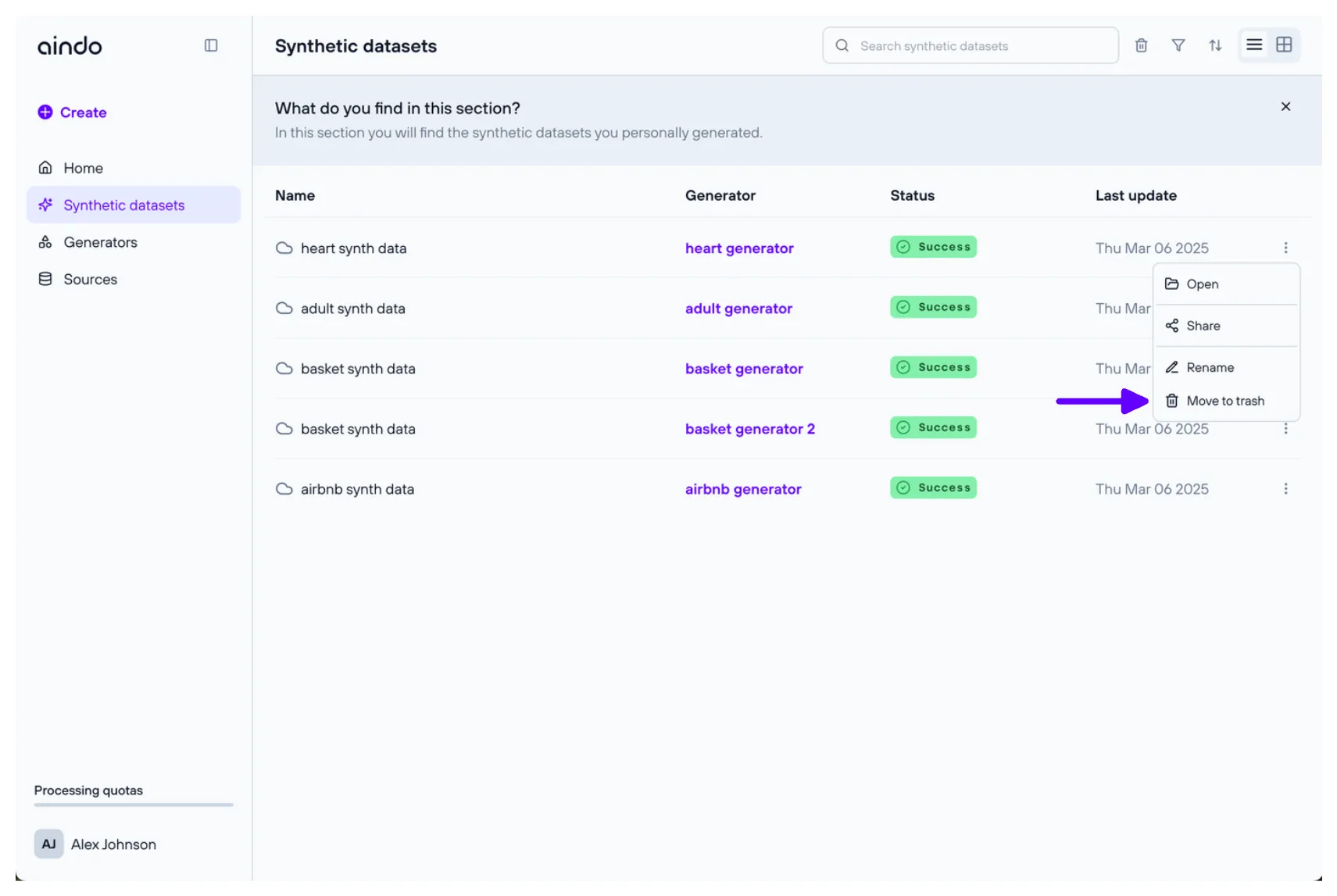
To delete a generated dataset, navigate to the list of generated datasets, click the three dots on the right of the generated dataset you want to delete and select ‘Delete generated dataset’.